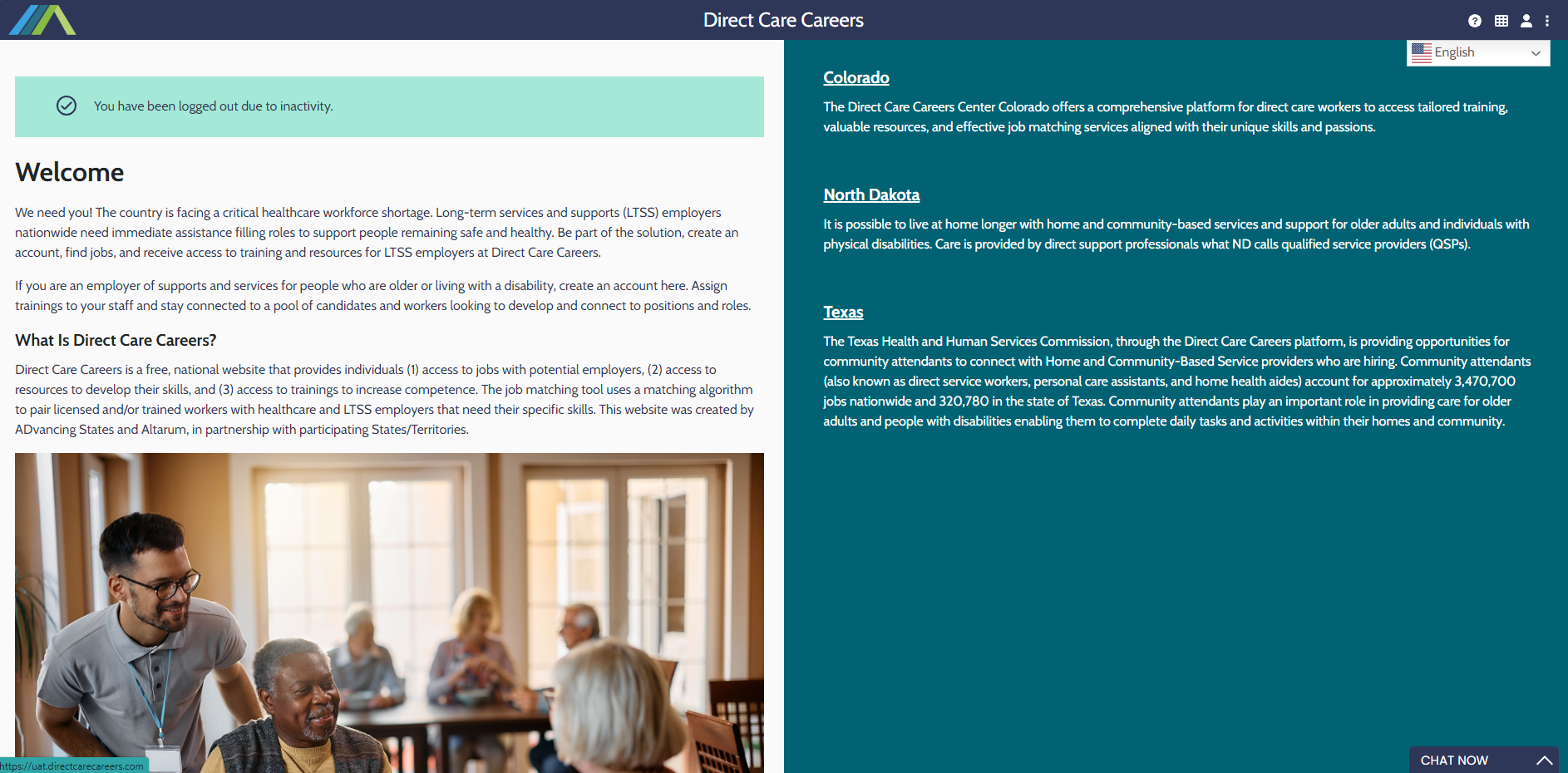
Step 1:
Start from the Direct Care Centers home page.
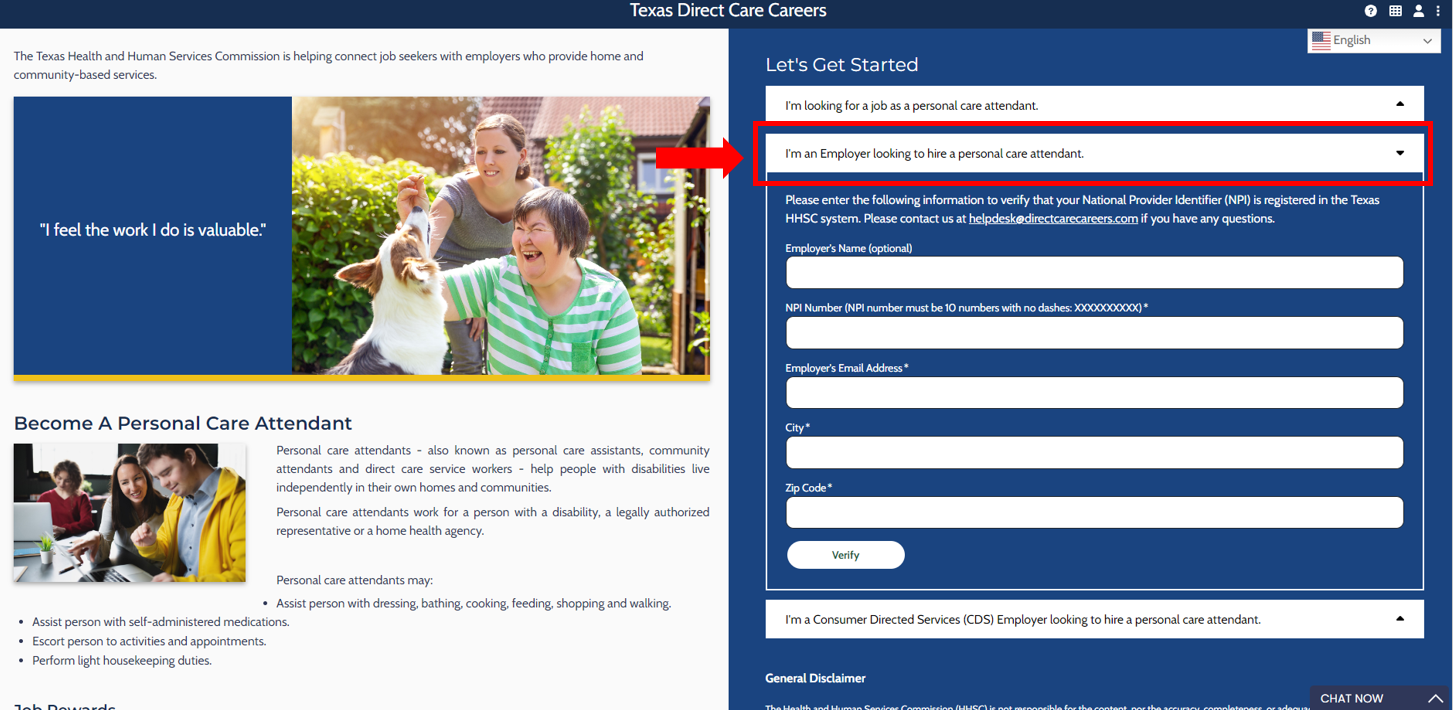
Step 2:
Select the link labeled “I’m an Employer looking to hire a personal care attendant.”
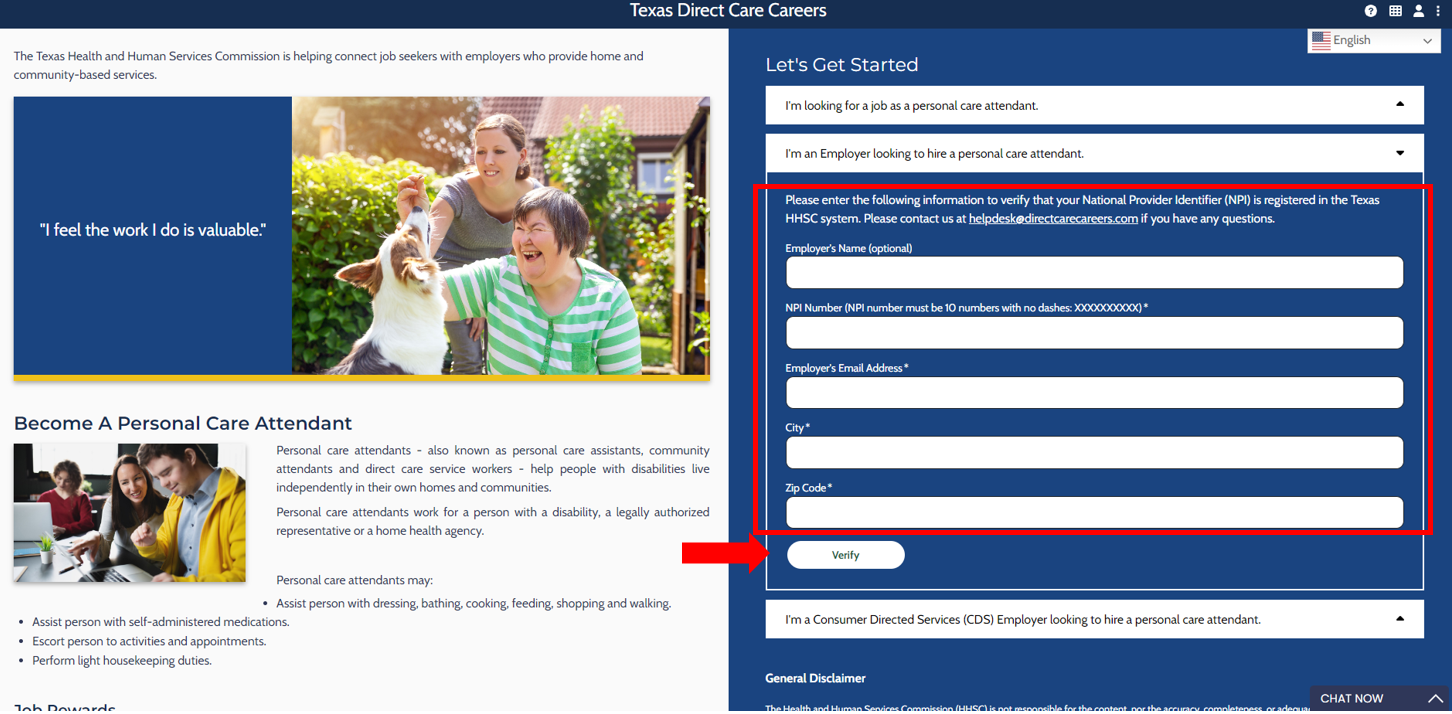
Step 3:
Fill in the registration form. Required fields are NPI Number, Company Email Address, City, and Zip Code. After entering this information, select the “Verify” button.
Step 4:
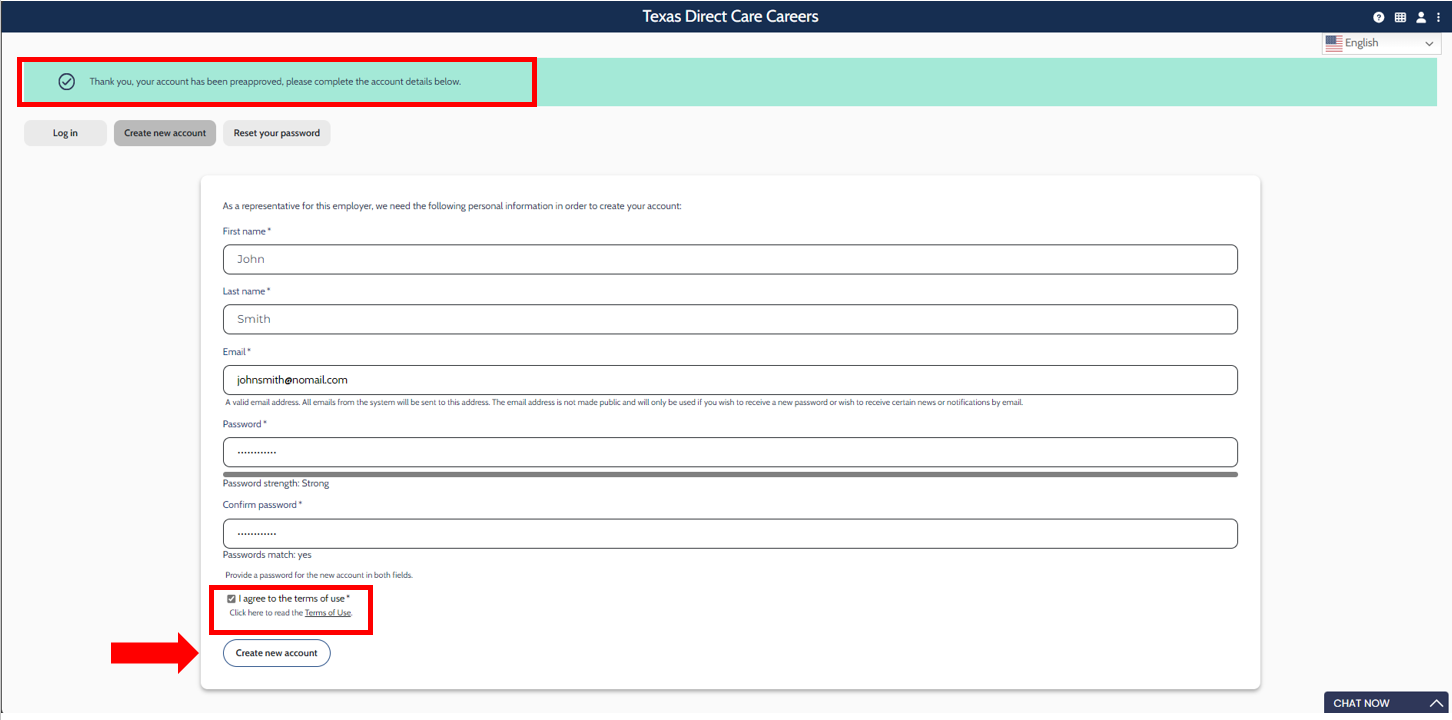
- If the NPI Number, Business Email Address, City, and Zip Code you entered match the state’s Employer list, a confirmation message will appear stating: “Thank you. Your account has been preapproved, please complete the account details below.” A new form will then appear so you can continue registering for a profile.
- In this new form, enter your personal name and email address, and create a password.
- Select the checkbox to agree to the “Terms of Use.”
- Select the “Create New Account” button.
Step 5:
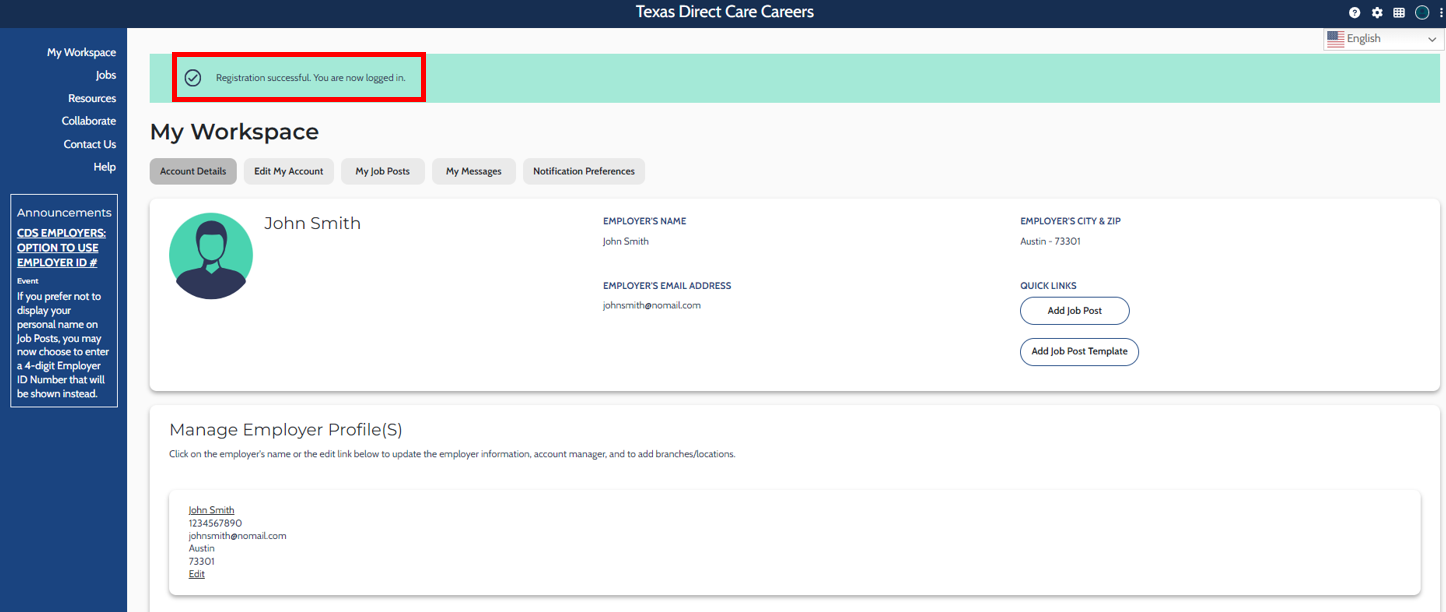
A message reading “Registration successful, you are now logged in” confirms that you have successfully registered as a representative for your company.
Step 6:
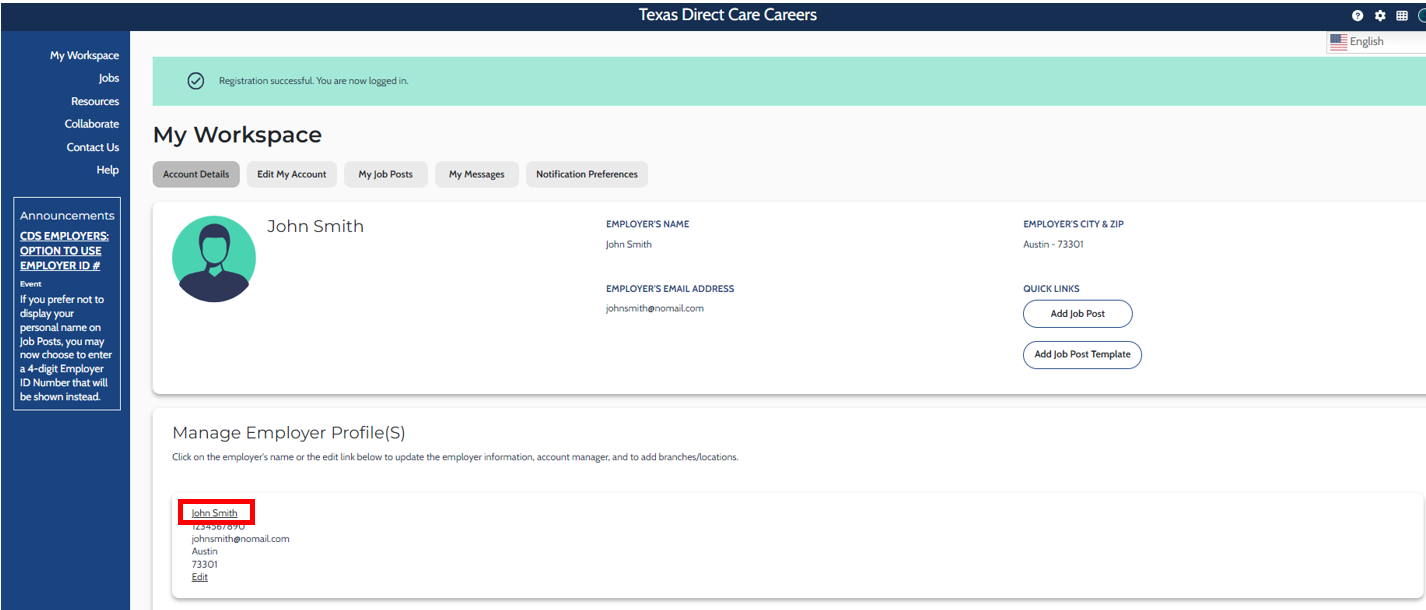
On this page, locate the “Manage Employer Profile(s)” section and select the link with your company name.
Step 7:
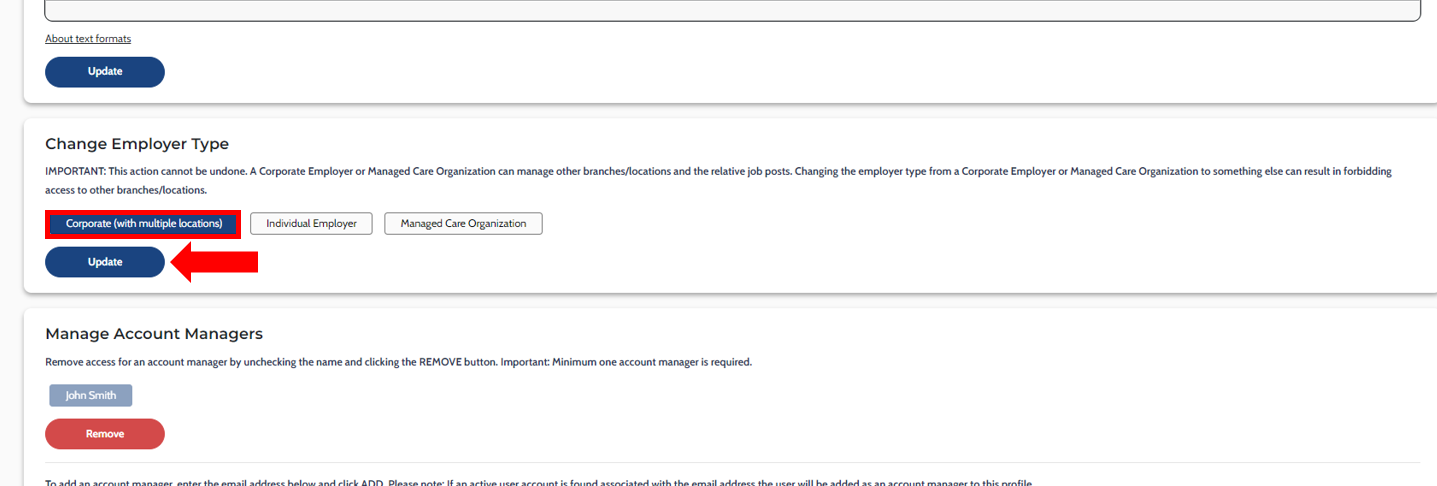
On this page, you can add details to your company profile, such as Phone Number, About the Employer, Type of Employer, and Branch Locations (if applicable). The “Type of Employer” field defaults to a preset value, so you must change it to “Corporate with multiple locations,” then select the “Update” button to save your changes.
Step 8:
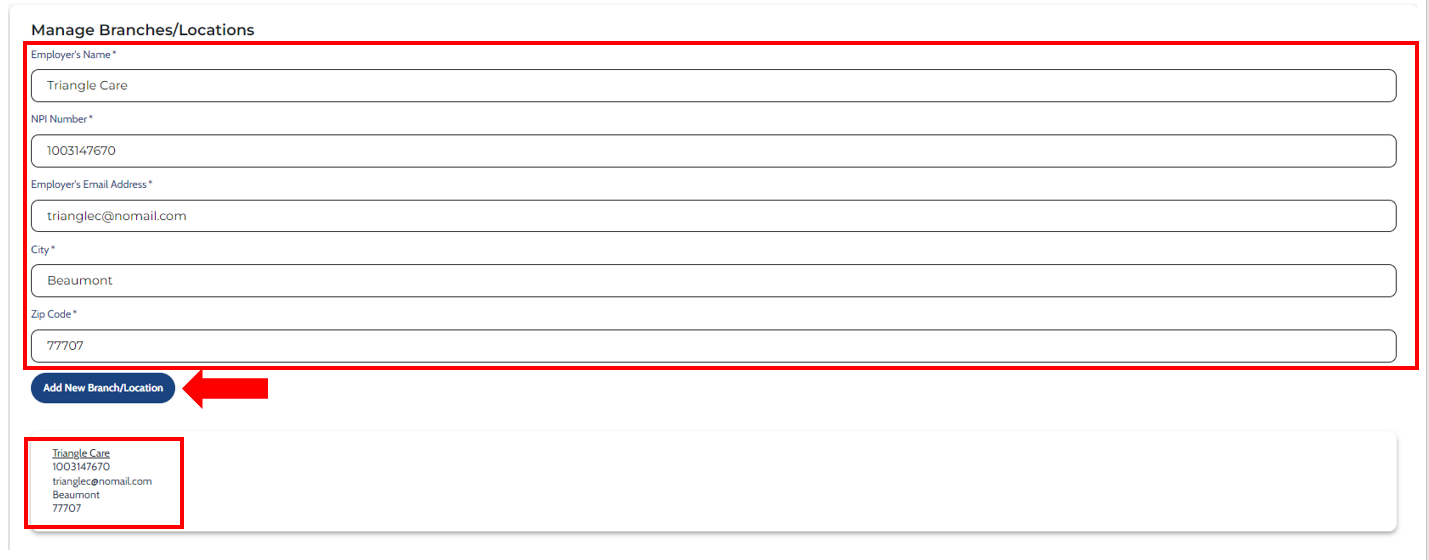
After you change the Employer Type and select “Update,” a “Manage Branches/Locations” section will appear on the page. Enter the information for your affiliate company in this section, then select the “Add New Branch/Location” button. Once added, the affiliate company will appear as a new entry within the “Manage Branches/Locations” section.
Step 9:
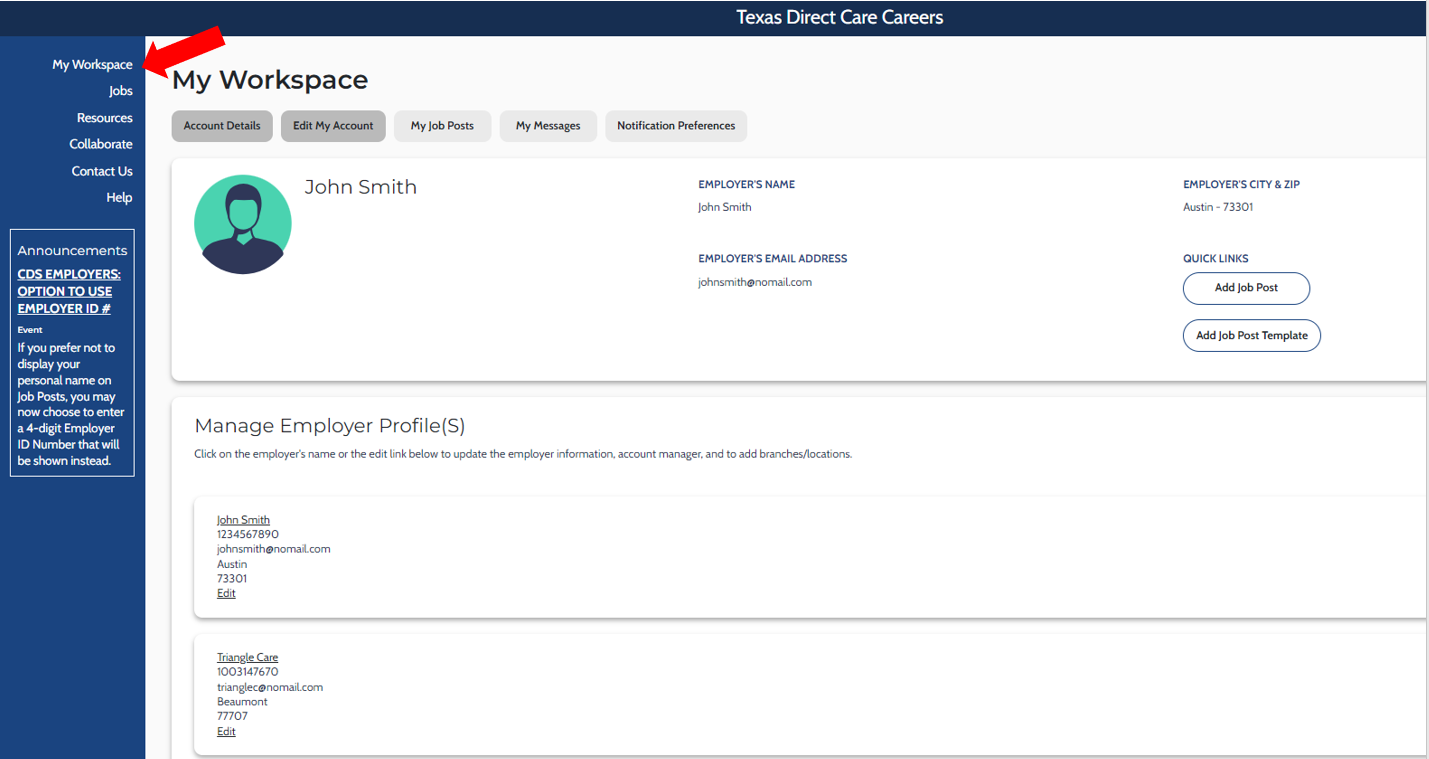
Select “My Workspace,” located in the toolbar at the top of the page. You have now successfully registered as an Employer (corporate or main location account) with an affiliate branch/location. Both the corporate or main location company and the affiliate company will appear as entries within the “Manage Employer Profile(s)” section of “My Workspace.”
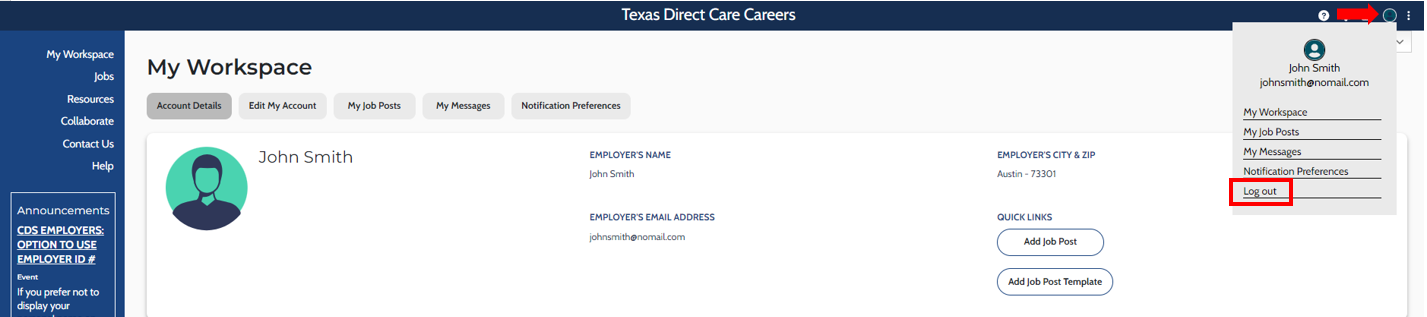
To log out:
Open the account menu by selecting the account icon, then select “Log out.”