
Step 1: Locate Icon and Select
Locate and click on the gear icon in the upper right corner of the website.

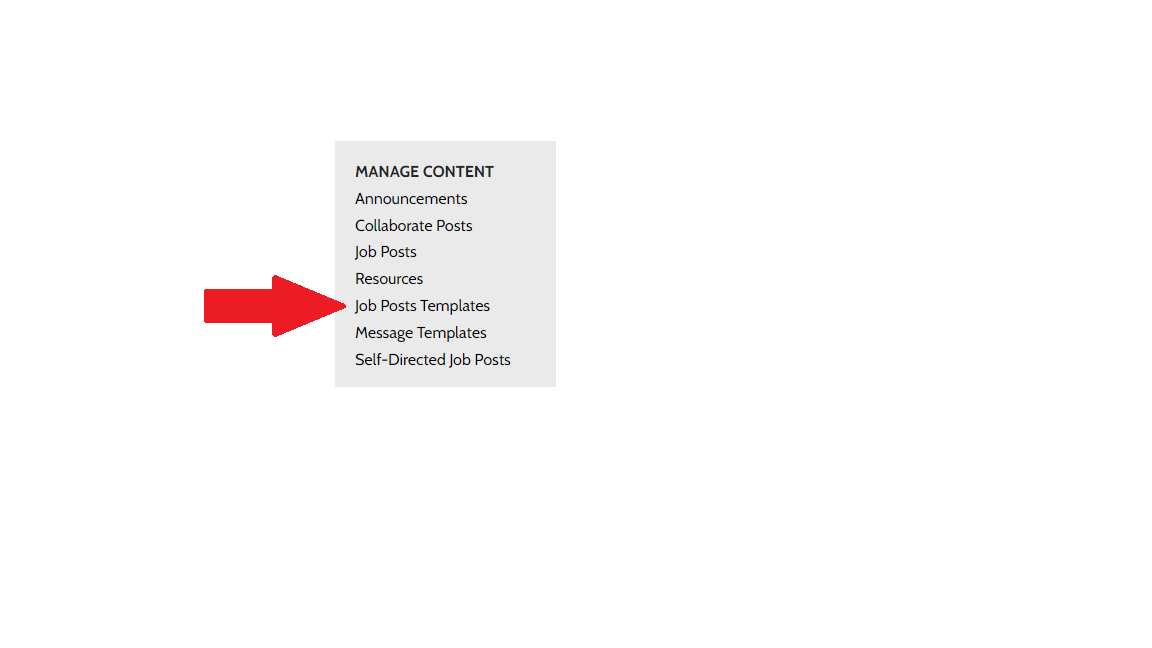
Step 2: Select Job Posts Templates
Within the “Manage Content” menu, select Job Posts Templates.
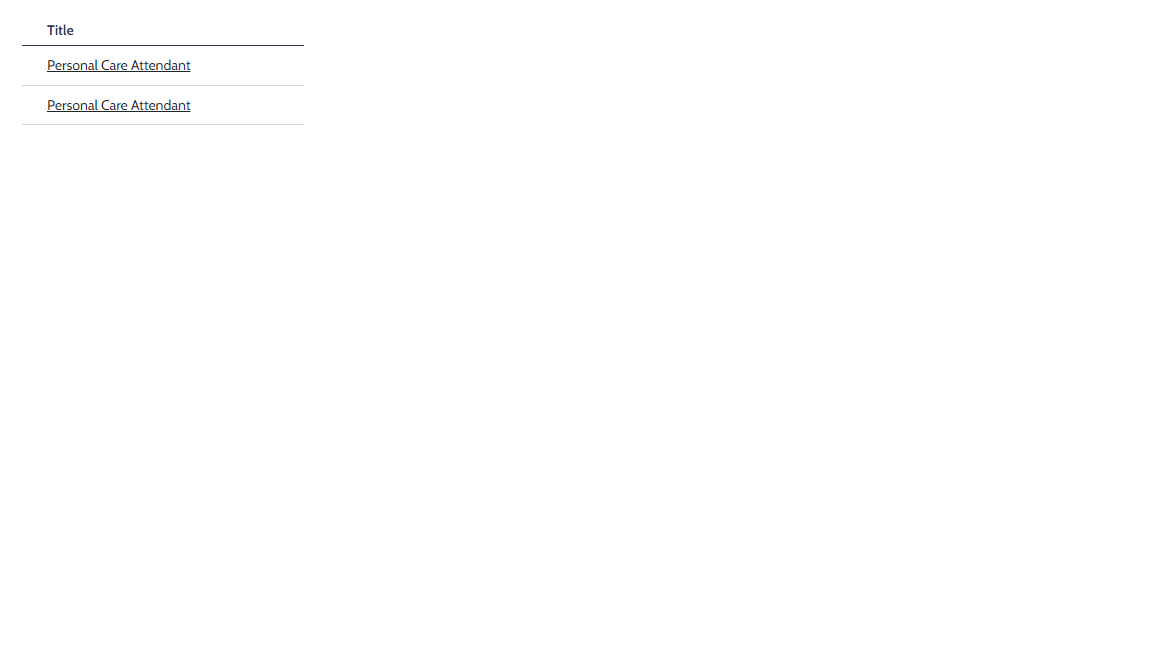
Step 3: Select Template to Edit
Locate the template you need to edit in the list of existing templates and click on the Title.
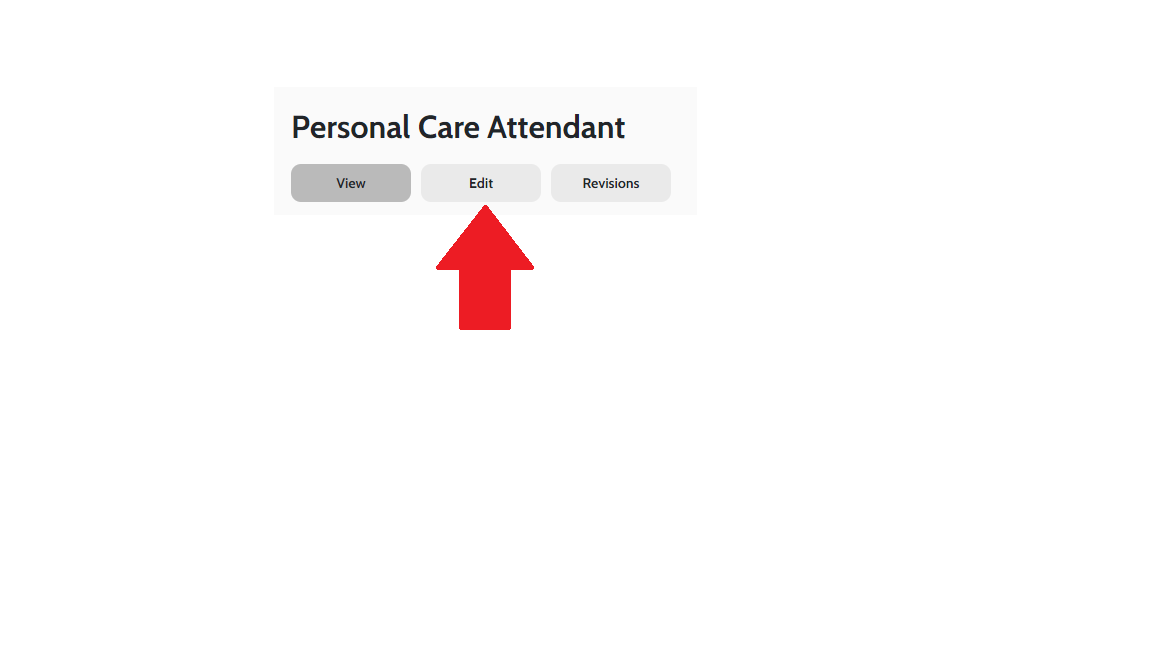
Step 4: Select the Edit Button
Once you have selected the job to edit, click on the “Edit” button.
Step 5: Make Changes
Make any needed changes to the job details. Note that the Job Title, Provider, and Program State are the only required fields.
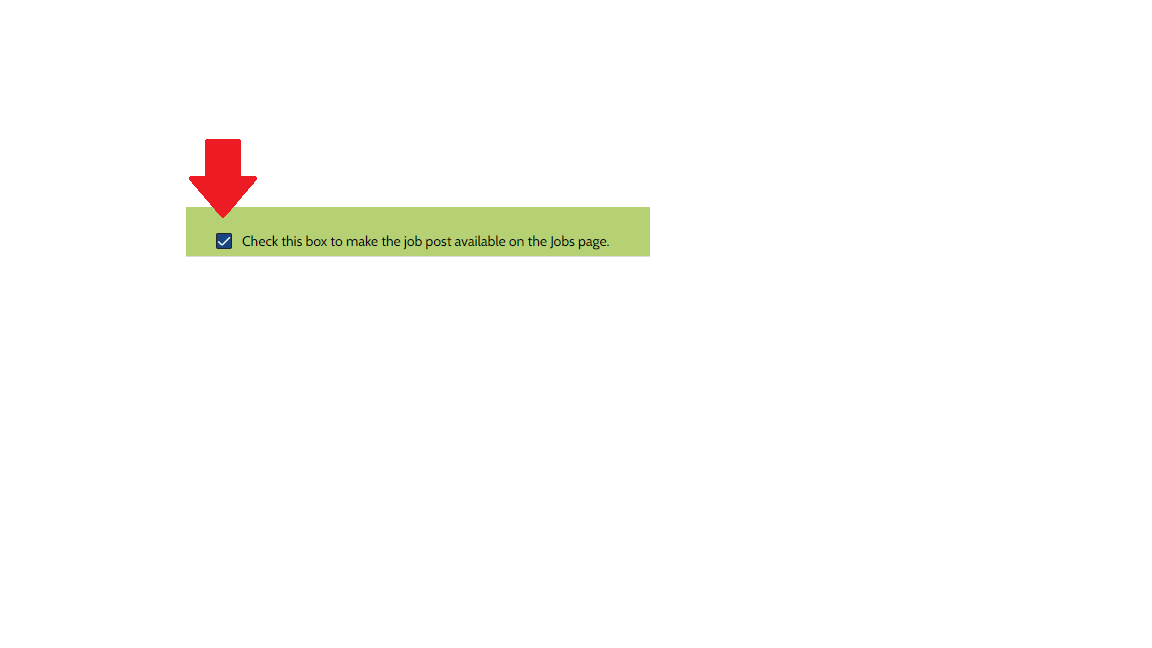
Step 6: Make Post Available
To make the post visible on the website, select the green shaded box “Check this box to make the job post available on the Jobs page”.
Step 7: Save the Edited Job Posting
Select the Save button located in the lower right corner of the edited job post