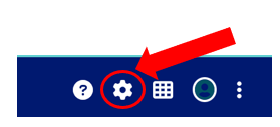
Step 1: Navigate to the state admin mega menu
Find the gear icon in the top right of the page header. Click on the gear icon to expand the state admin mega menu.
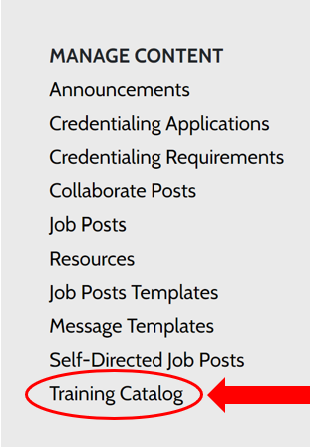
Step 2: Select Training Catalog
In the state admin mega menu, within the “Manage Content” section, click on the “Training Catalog” link.
Step 3: Create New Training
Click the “Create new training” button. After the page refreshes, fill out the form and click “Next” at the bottom of the page to progress to the next section.

Step 4: Complete each section
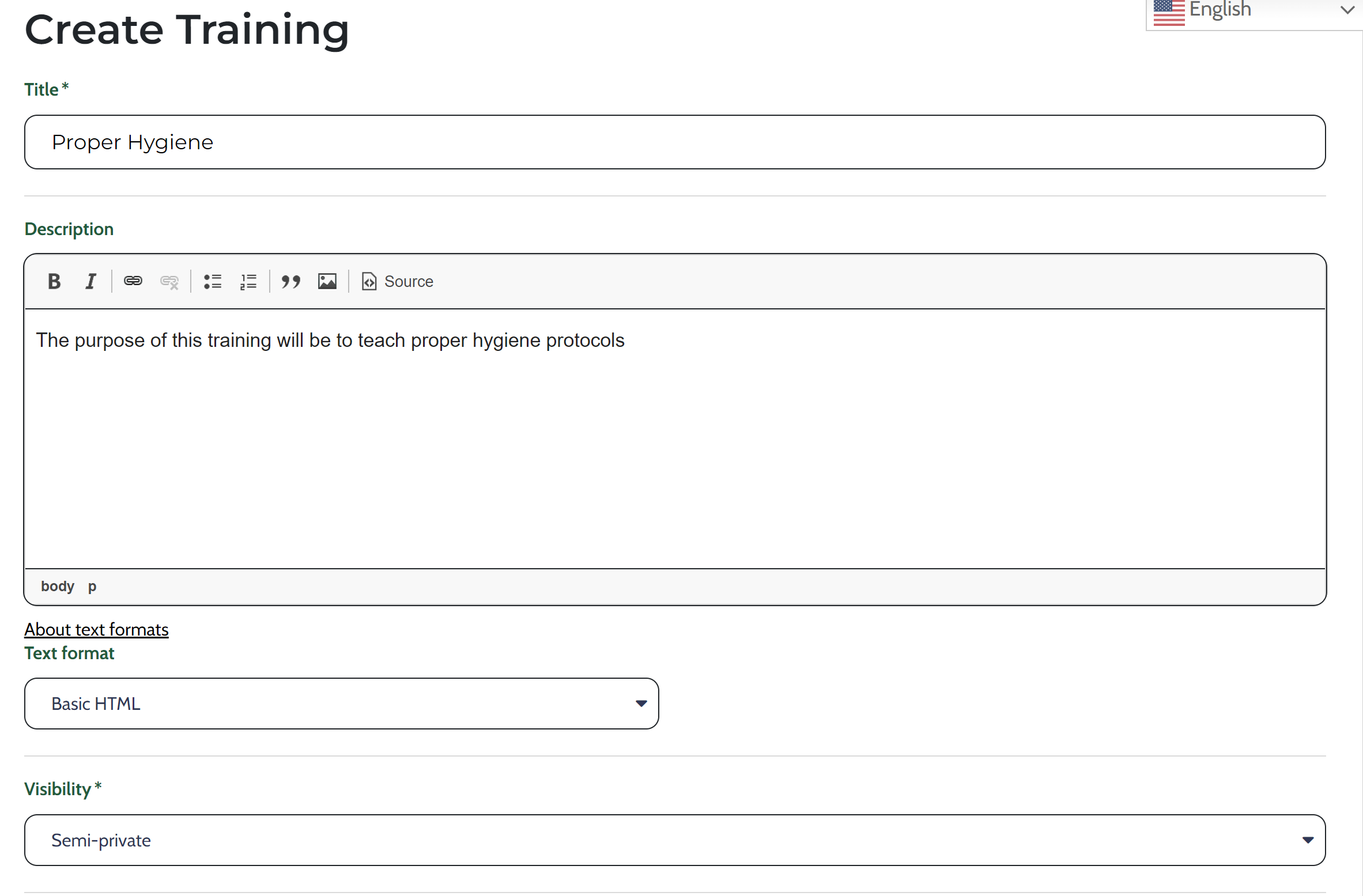
Complete each section to build the training, starting with Description and then progressing to Learning Path Manager, Modules, Activities, and Members, selecting Next at the bottom of each page.
Step 5: Publish a training
Once the training is created, make it available to users by selecting the Publish button located at the bottom of the Description page
Step 6: Edit a training
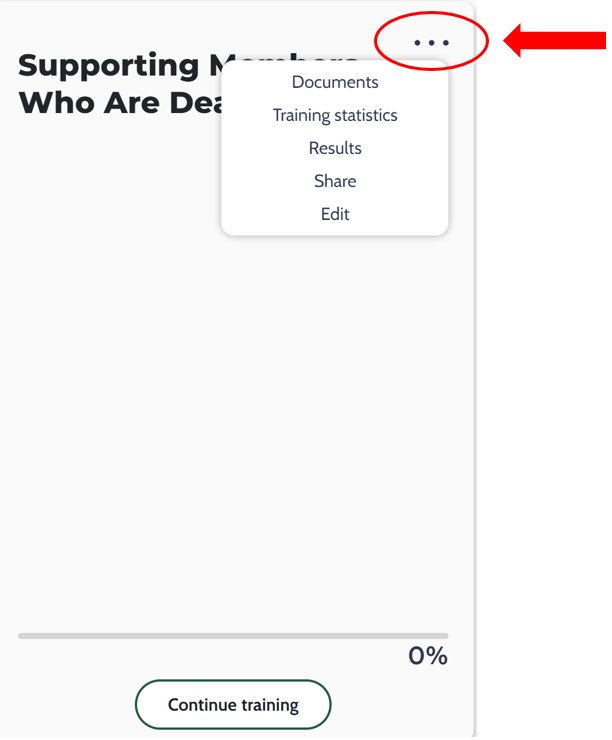
Find a training from the list and click on the title. Click the ellipsis (3 dots) in the upper right corner of the card and select “Edit”. Make needed edits and click “Save” at the bottom to save your changes.
Step 7: Delete a training
To delete a training, follow the steps above to edit a training. On the Description page, scroll to the bottom and select Delete. On the following confirmation page, select Delete again. Note, this action cannot be undone.